A safer way to save FlashAir photo data to your Windows PC.
Available / Windows v1.0.0Windows 10 / 11x64Local-first
Framecode SD Utility imports JPEG, RAW, and video files from FlashAir to Windows. Monitor transfer status, review failures, and retry without deleting or moving the original files on the card.
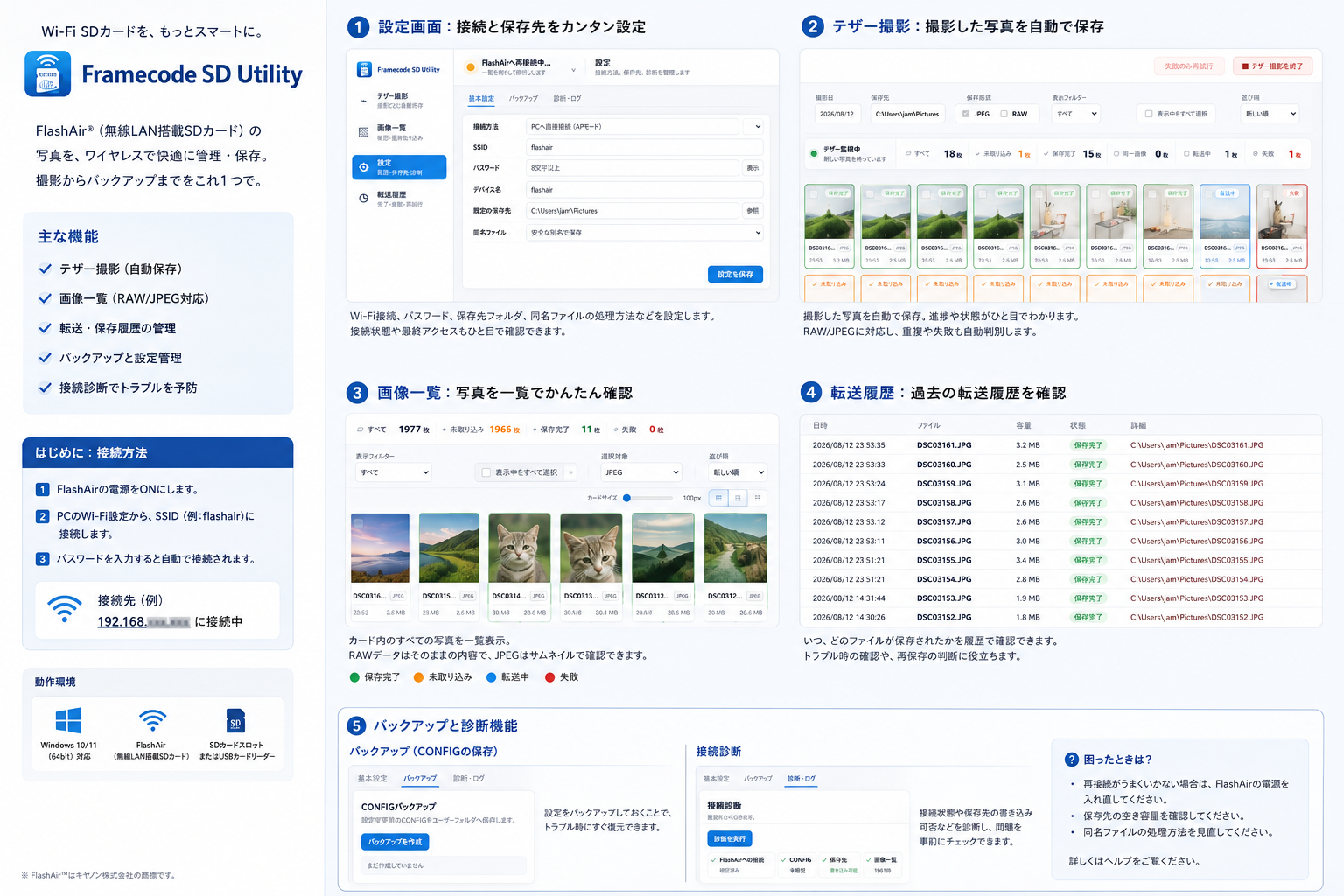
From connection settings and automatic saving to transfer history, backup, and diagnostics.
Screenshots
Store materials
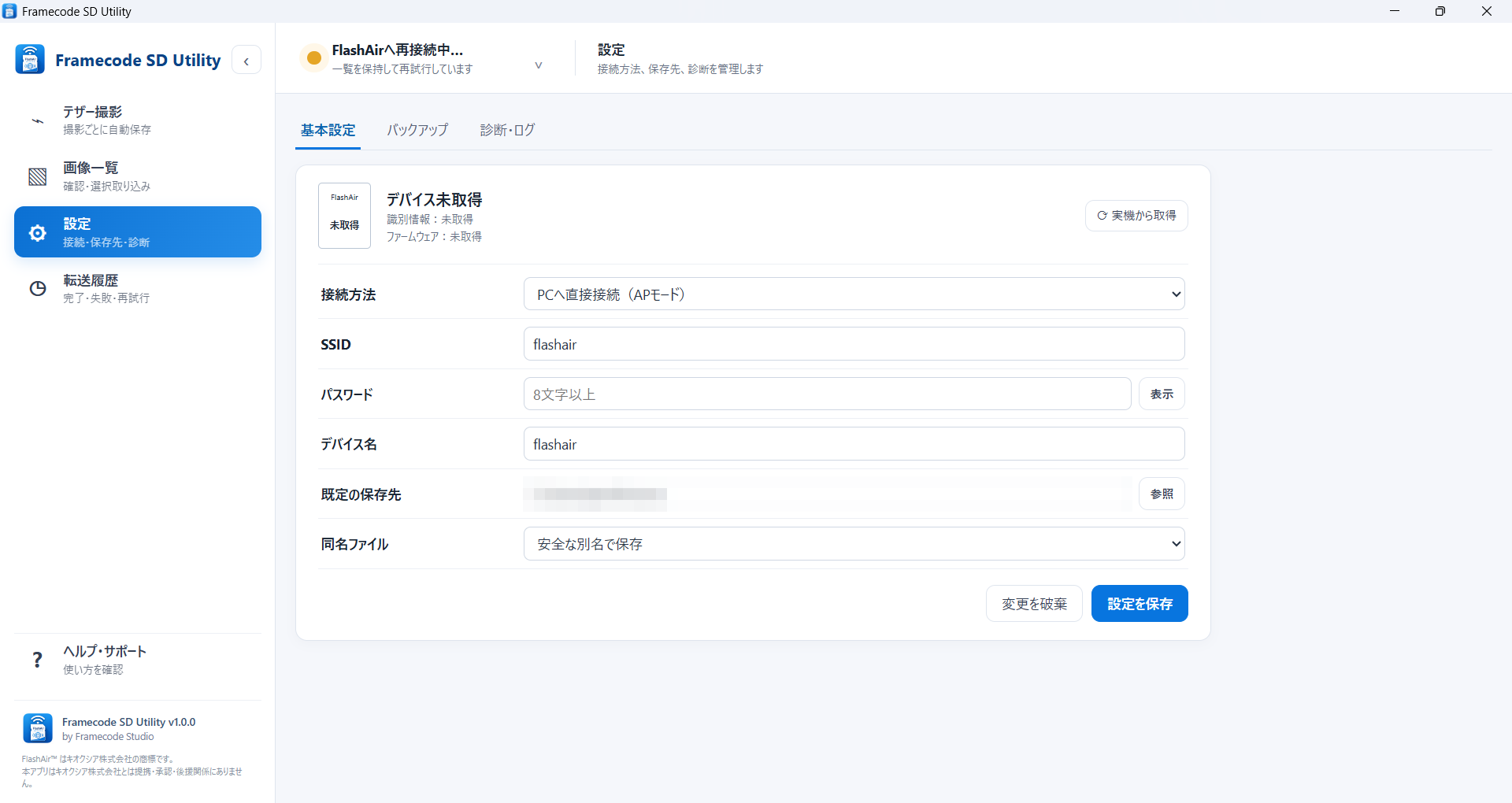
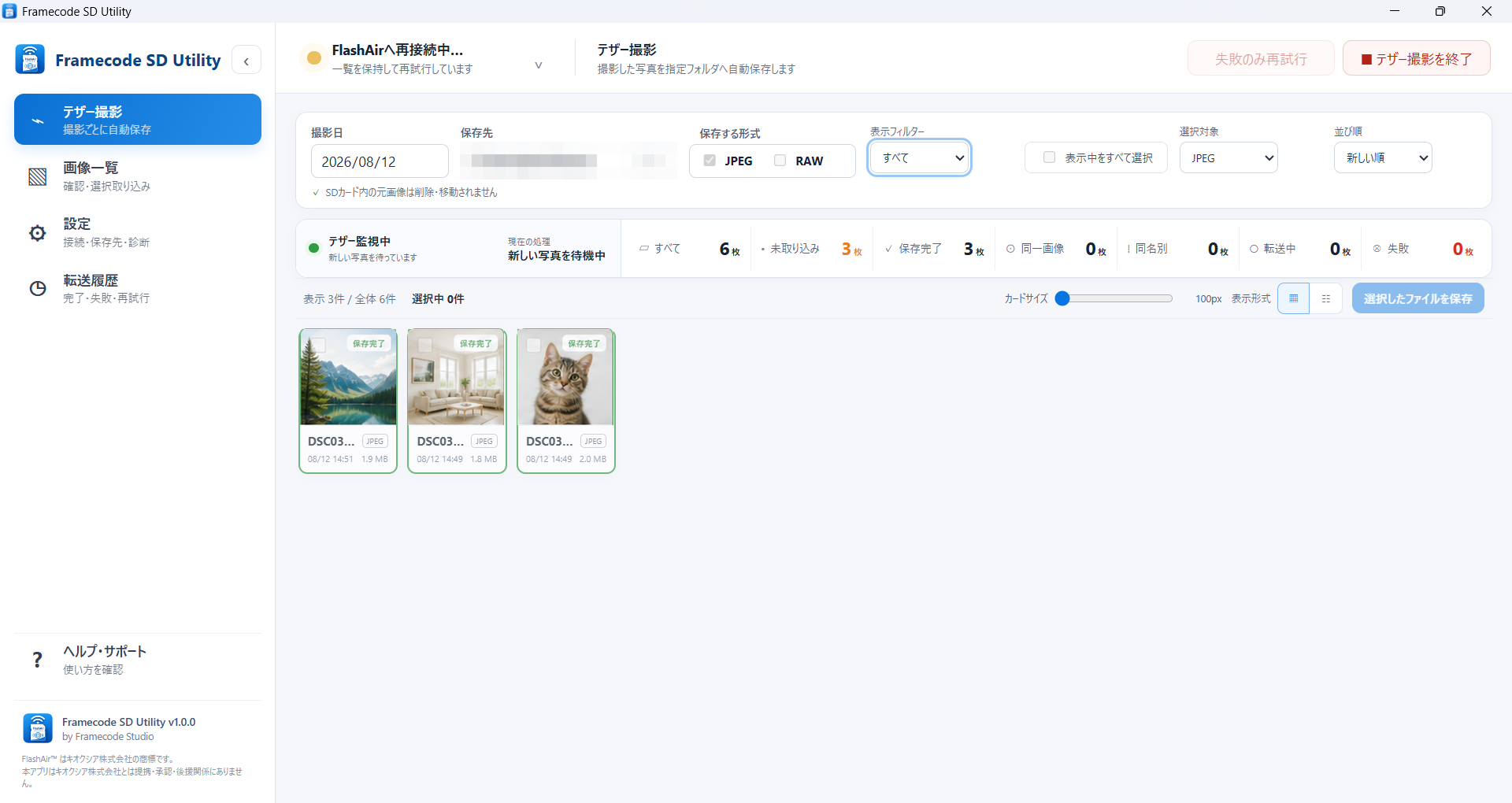
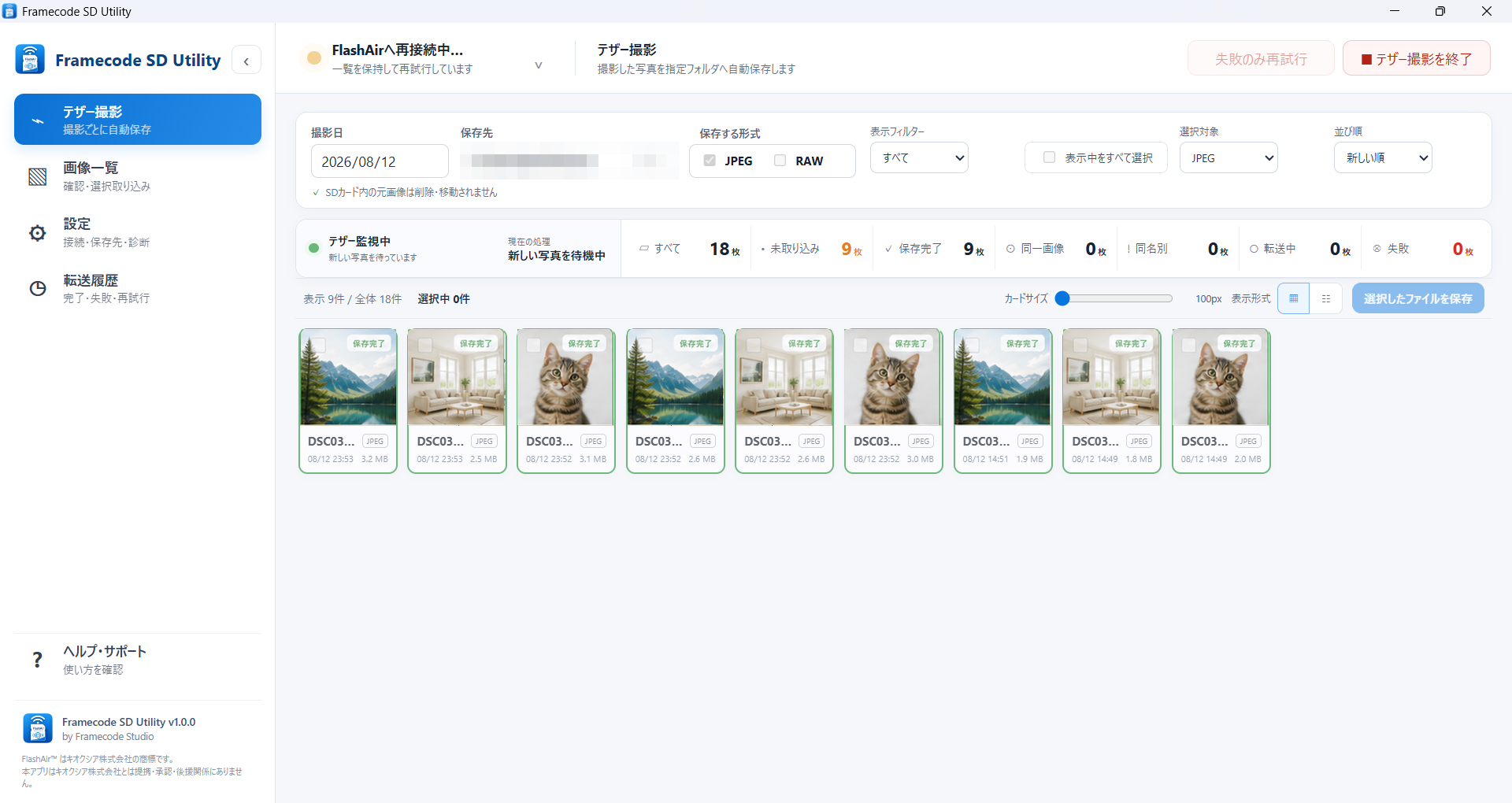
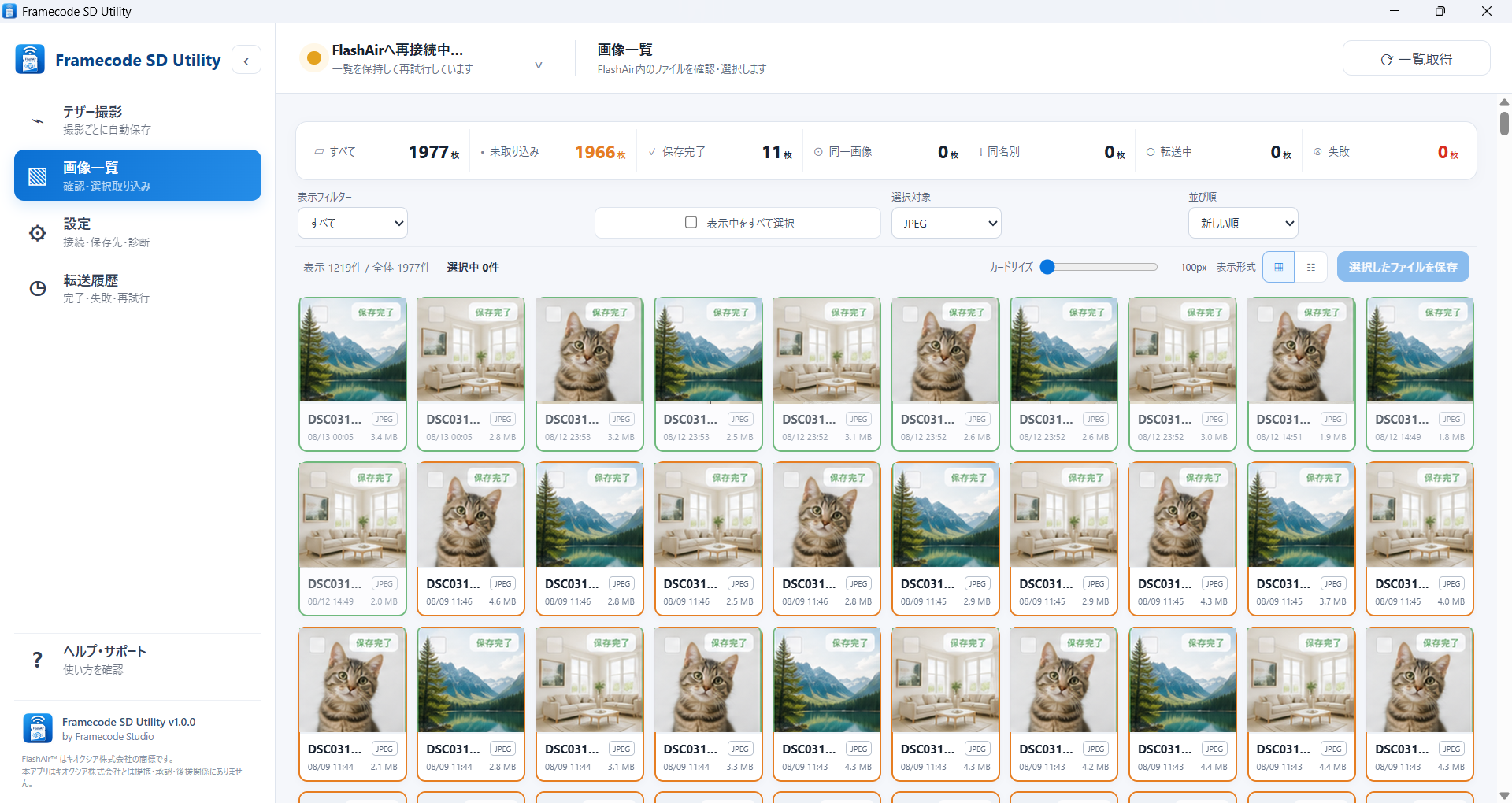
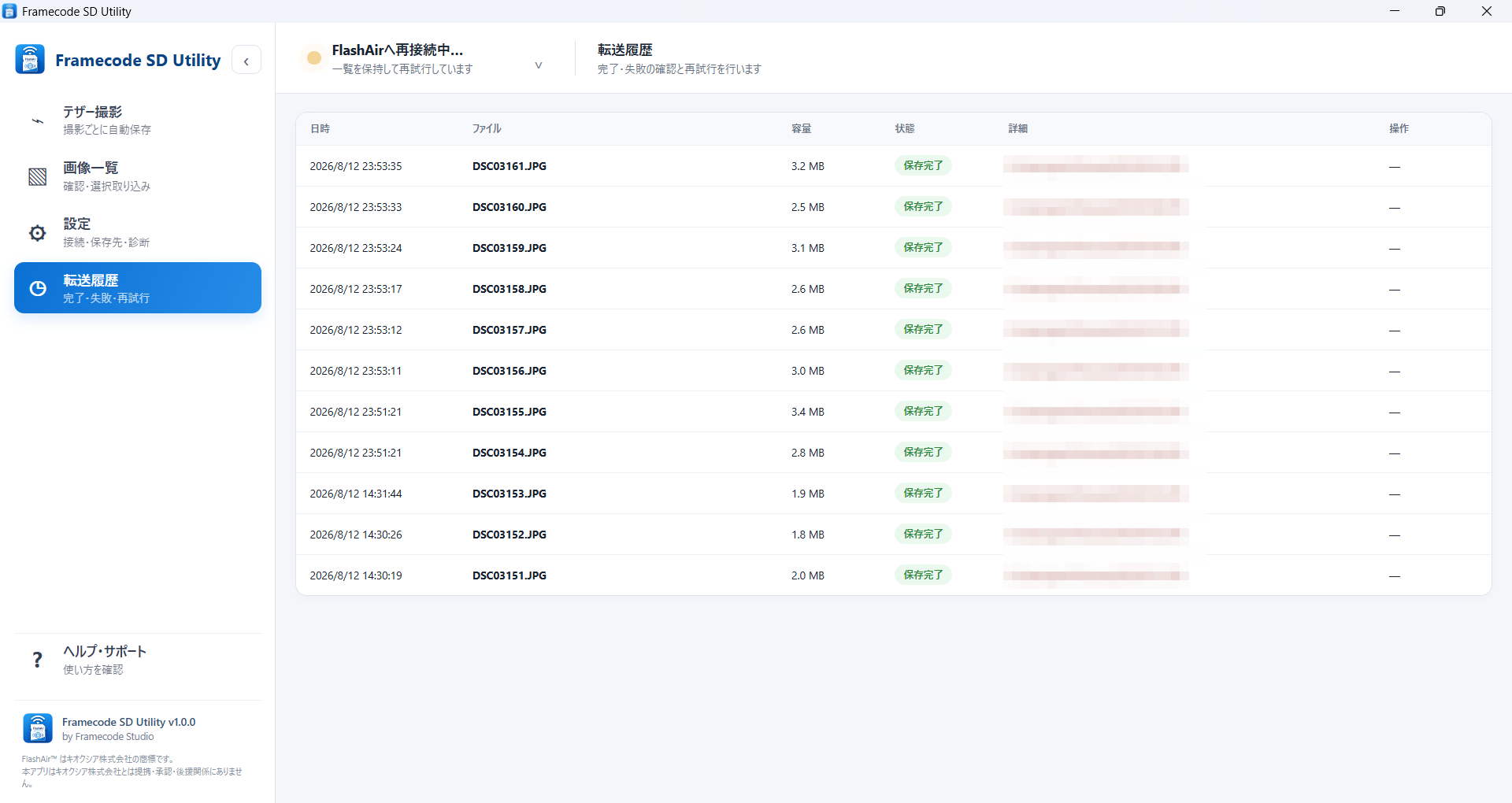
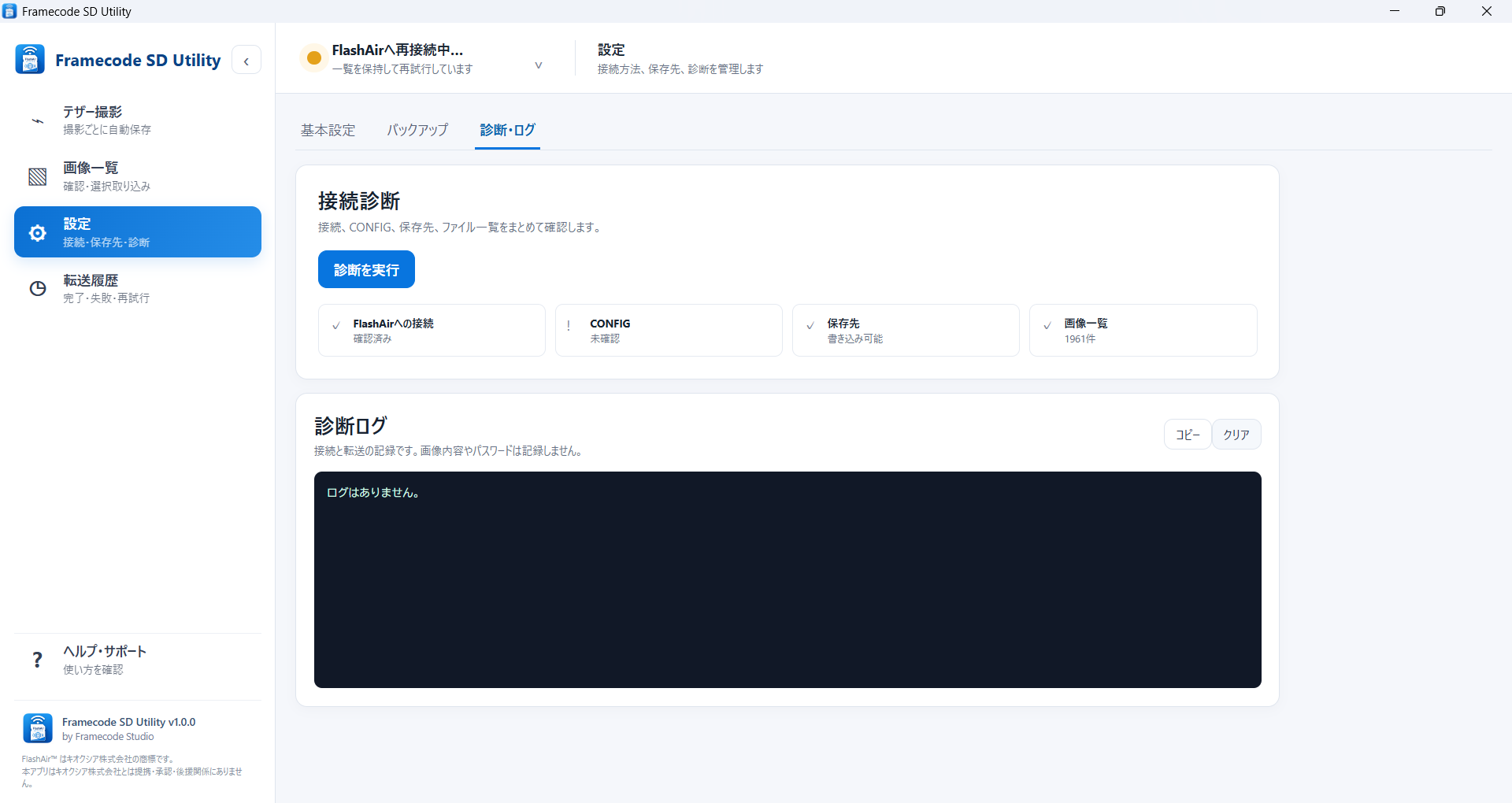
1. Set up connection and destinationChoose the FlashAir connection, SSID, save folder, and duplicate-file behavior.2. Tether captureDetect and save new JPEG and RAW files from a chosen shooting date.3. Review transfer statusSee completed, pending, transferring, and failed items at a glance.4. Browse imagesReview thumbnails and choose the files you want to save.5. Transfer historyCheck timestamps, filenames, sizes, status, and destination folders.6. Diagnostics and logsReview connection, CONFIG, destination, and image-list status together.
Key features
v1.0.0 scope
▦FlashAir image listBrowse card contents and save selected files.
↻Tether captureDetect new JPEG and RAW files from a selected shooting date.
⇄Original files stay unchangedSave JPEG, RAW, and video without conversion, deletion, or moving.
✓Verify saved resultsCheck file size and record SHA-256 in transfer history.
!Retry failed transfersRetry individual items or a group after a connection interruption.
⚙Backup and diagnosticsBack up CONFIG, check the connection, and review logs.
#Protect against duplicatesChoose a safe alternate filename instead of overwriting.
⌁Local-first handlingPhotos, history, and diagnostic data stay on the Windows device and are not automatically sent to the developer.
About tether captureThis app does not remotely control the camera. It detects files created by the camera and saves them from FlashAir to the PC.
Technical details
Operating system
Windows 10 / 11 (64-bit)
Version
v1.0.0
Package
Windows x64
Connection
FlashAir Wi-Fi and HTTP API
Saved formats
JPEG, RAW, and video without conversion
External sending
No automatic advertising, analytics, or tracking upload to the developer
Three simple steps
1Connect to FlashAir Turn on the camera and connect Windows Wi-Fi to FlashAir.
2Choose a workflow Select image list or tether capture, then confirm destination and date.
3Check the result Review status and transfer history for completed, failed, or retry items.
Safe use
When connected to FlashAir Wi-Fi, your normal internet connection may be unavailable. CONFIG backups and diagnostic logs may contain connection details.
It finds JPEG, RAW, and video files on FlashAir and saves them to a selected Windows folder while showing transfer status and retry options.
Can it control my camera remotely?
No. Tether capture detects files created by the camera; it does not remotely operate the camera.
Are original files deleted or moved?
No. The app does not delete or move originals on the FlashAir card, and it does not convert the saved files.
Does the app send photos or settings outside the device?
Version 1.0.0 does not automatically send photos, settings, history, or logs to the developer for advertising, analytics, tracking, or remote collection. It communicates with FlashAir's local HTTP API to provide its features.