Available / Microsoft StoreWindows 10 / 11JPG / JPEG / PNG日本語 / EnglishLocal processing
A focused Windows app for reviewing photos as a contact sheet. Sort by filename, capture date, or file size, drag images into order, and export PDF, PNG, or JPEG. The app is available on the Microsoft Store.
▦Review a group of photos Load JPG, JPEG, and PNG files or a folder, then review thumbnails and capture information.
↕Shape the order Sort by filename, capture date, or file size, then use drag-and-drop or move buttons.
PDFExport for the job Choose paper, orientation, columns, spacing, labels, and PDF, PNG, or JPEG output.
Current statusThe app is available on the Microsoft Store. Use the Store link above to install the current public release.
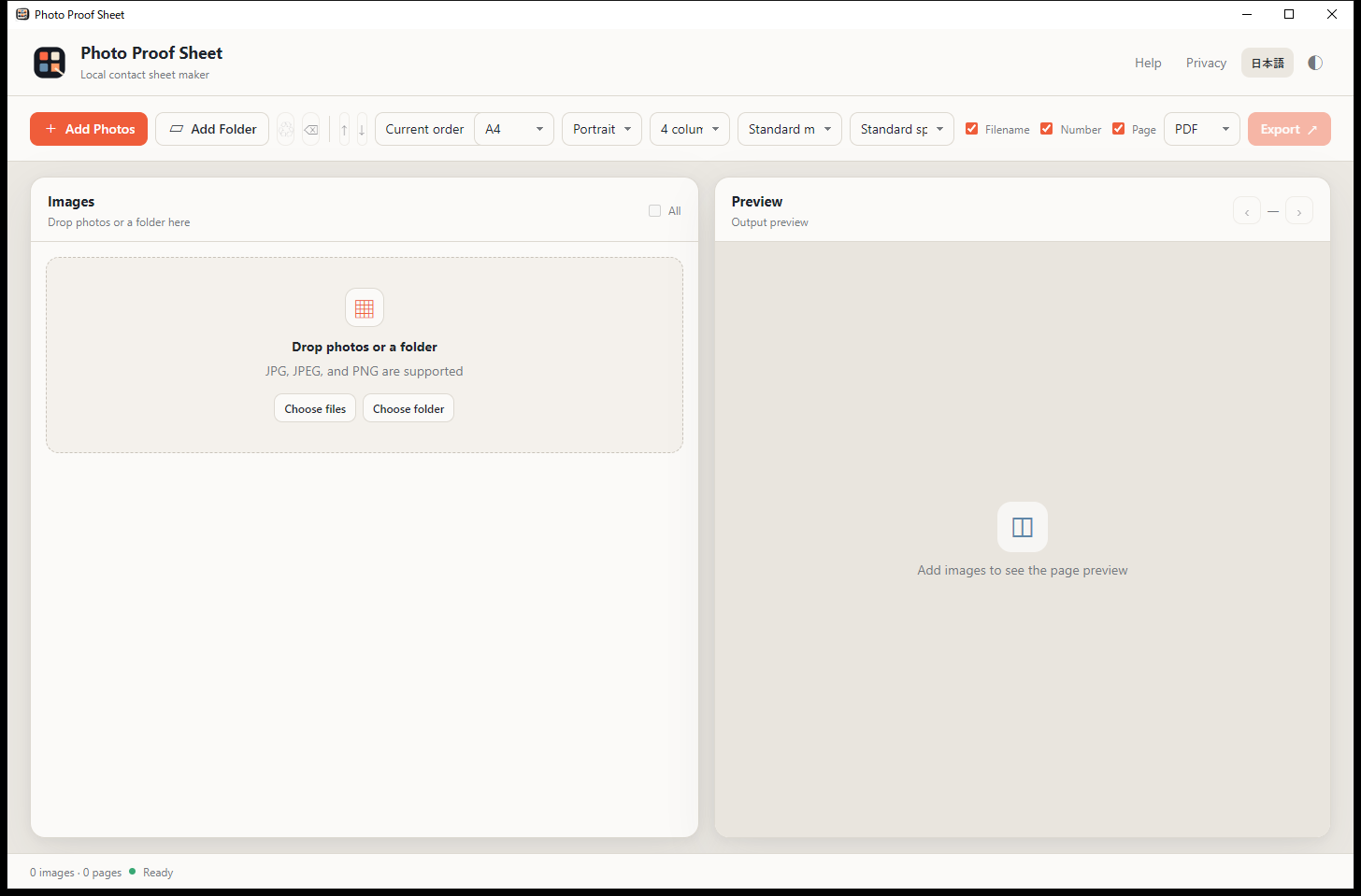
Screenshot
Actual Release build
Captured from the Release build after switching the app to English. The Japanese page uses the Japanese screen.
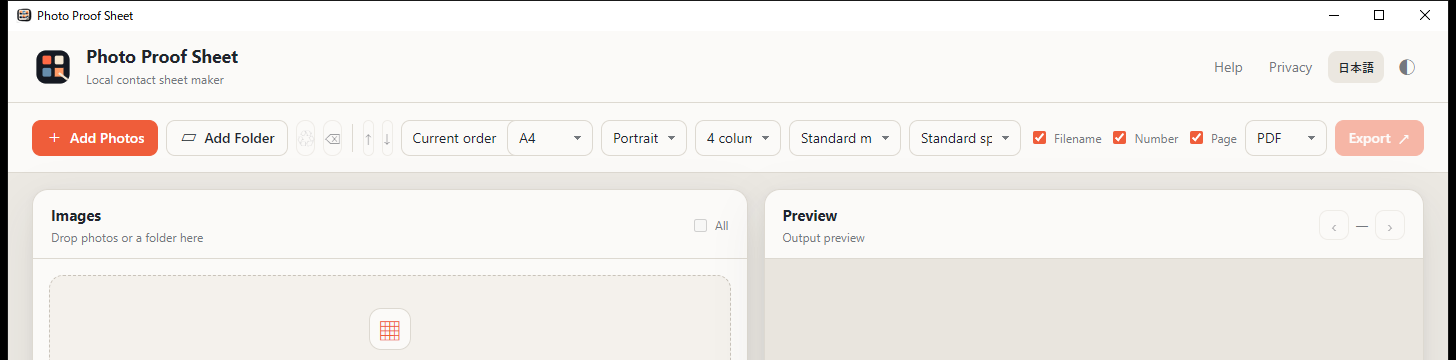
Main screenKeep the image list and page preview visible together while setting layout and output format.Control barUse the top bar to add photos or a folder, sort the list, choose the paper layout, toggle labels, and select PDF output.
Key features
Focused photo workflow
+Add files or foldersLoad JPG, JPEG, and PNG images without changing the originals.
×Remove from the listRemove selected items while leaving source files untouched.
↕Sort by size or dateUse ascending or descending filename, capture-date, and file-size order.
↔Drag to reorderArrange thumbnails manually and keep that order in the sheet.
A4Print-ready layoutsChoose A4 or Letter, portrait or landscape, columns, margins, and gaps.
AaToggle labelsShow or hide filenames, item numbers, and page numbers.
PDFExport three formatsChoose PDF, PNG, or JPEG and select the Windows save location.
文Japanese and EnglishSwitch the interface language on the device.
Technical details
Operating system
Windows 10 / 11 (64-bit)
Input
JPG, JPEG, and PNG
Output
PDF, PNG, and JPEG
Processing
On the user's Windows PC
Account
Not required
Network
Normally not required
PrivacySelected images are processed locally and are not automatically uploaded to a developer server.
Three simple steps
1Add photos Choose files or a folder.
2Arrange and format Use sort or drag order and adjust page settings.
3Choose a format and export Pick PDF, PNG, or JPEG.
Manual
The bilingual manual covers adding, removing, sorting, dragging, layouts, and export.