HomeWatch LAN Help
Quick start, camera setup, recording, screenshots, and troubleshooting for the Windows app.
Quick start
- Install and open HomeWatch LAN from Microsoft Store.
- Connect the Windows PC and phone to the same trusted Wi-Fi or local network.
- Choose a recording folder on the PC and confirm its status is ready.
- Scan a camera QR code shown in the PC app with the phone.
- Allow camera and microphone access in the phone browser and keep the camera page in the foreground.
- When the live picture appears on the PC, select Record. Stop recording and wait for the MP4 file to finish saving.
Before recording: Check that the PC has enough free disk space and can write to the selected folder. A short test recording is recommended.
Using the app
- Camera connections: Connect up to two phones using their individual QR codes.
- Recording quality: Choose Low, Standard, or High. The available range depends on the phone camera.
- FPS and exposure: Adjust frame rate and exposure while monitoring the live image.
- Backlight and zoom: Use presets and 1–3× zoom where supported by the phone.
- Local recording: Recordings are saved as MP4 files in the folder selected on the Windows PC. They are not automatically uploaded to the developer's cloud.
Keep the phone camera page visible and the phone awake while streaming. Mobile browsers and operating systems may pause camera access if the page is backgrounded or the screen locks.
Screenshots
These are the current product screenshots. Some show the Japanese interface; the English app UI is selected from the language menu.
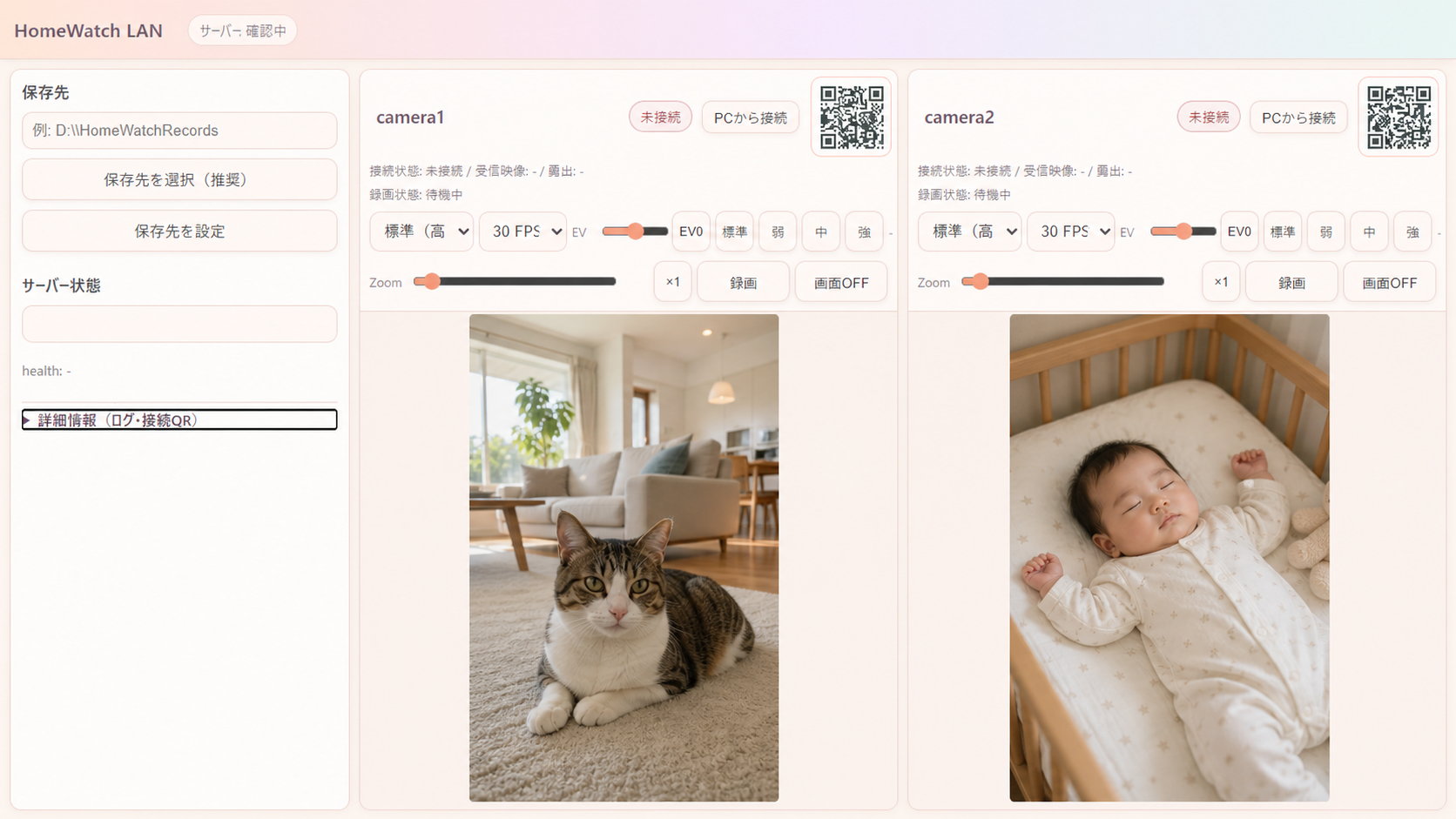
View and control up to two phone camera feeds.
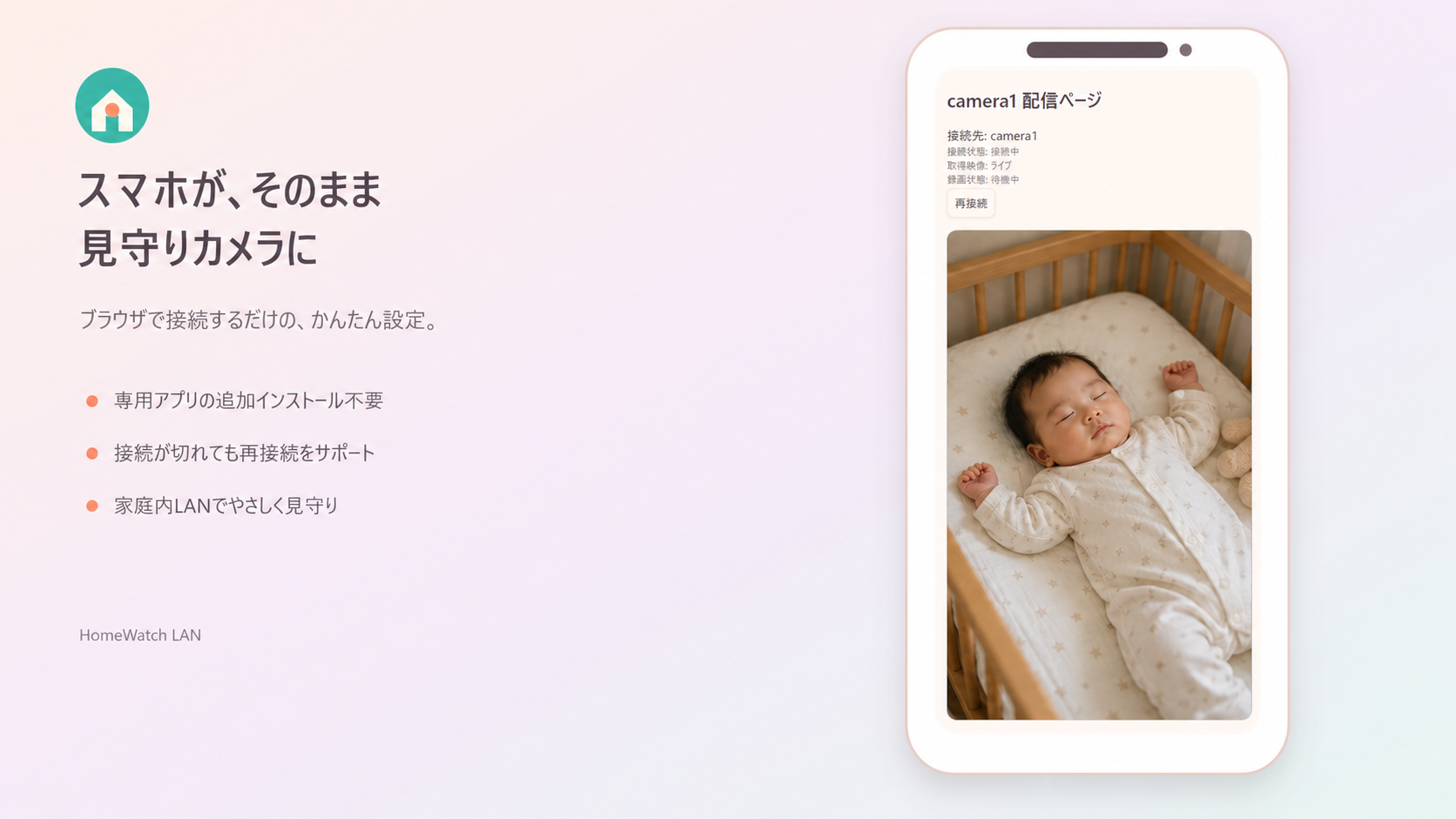
Stream video and audio to the PC over your home network.
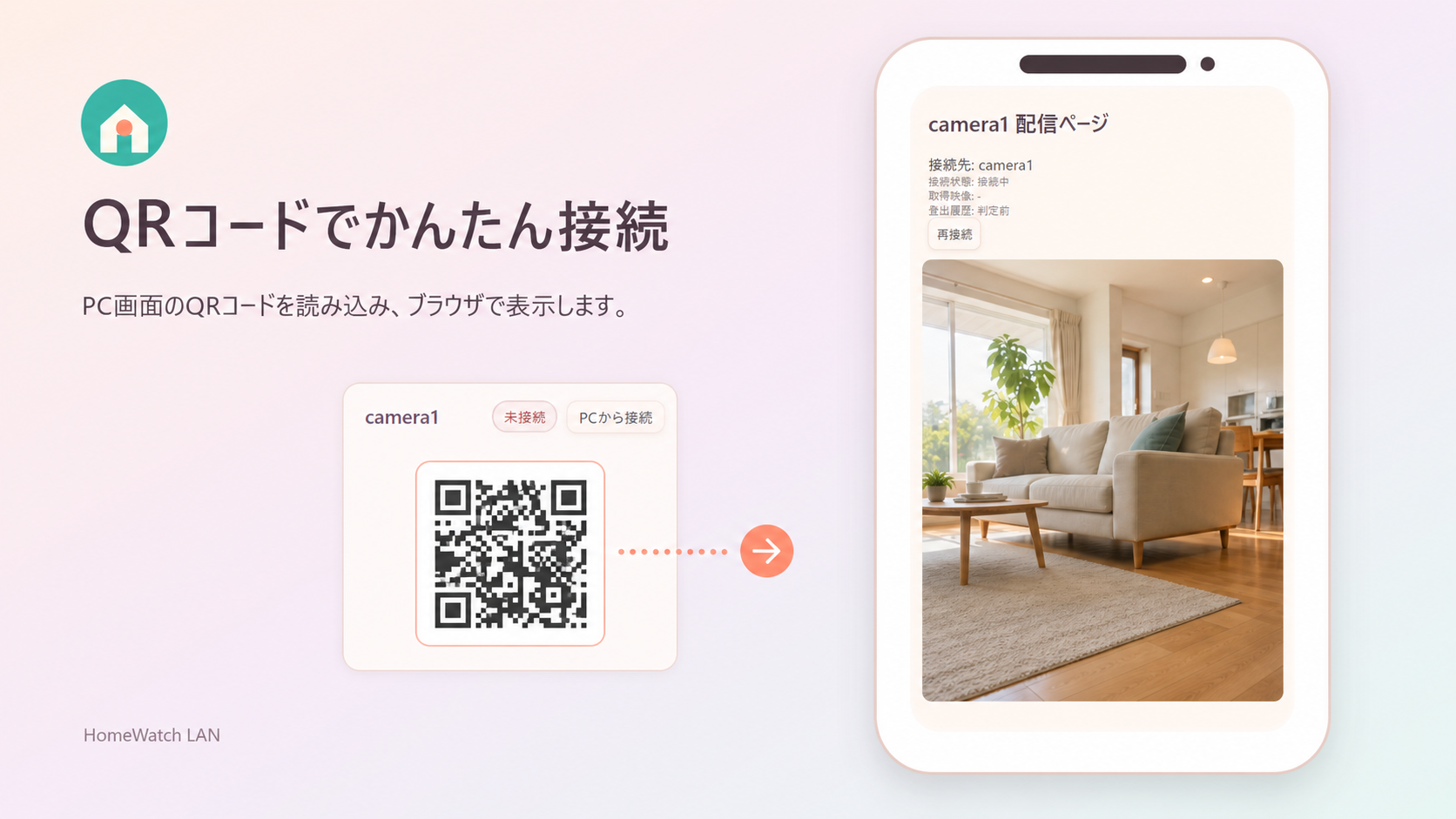
Open the phone camera page by scanning a QR code.
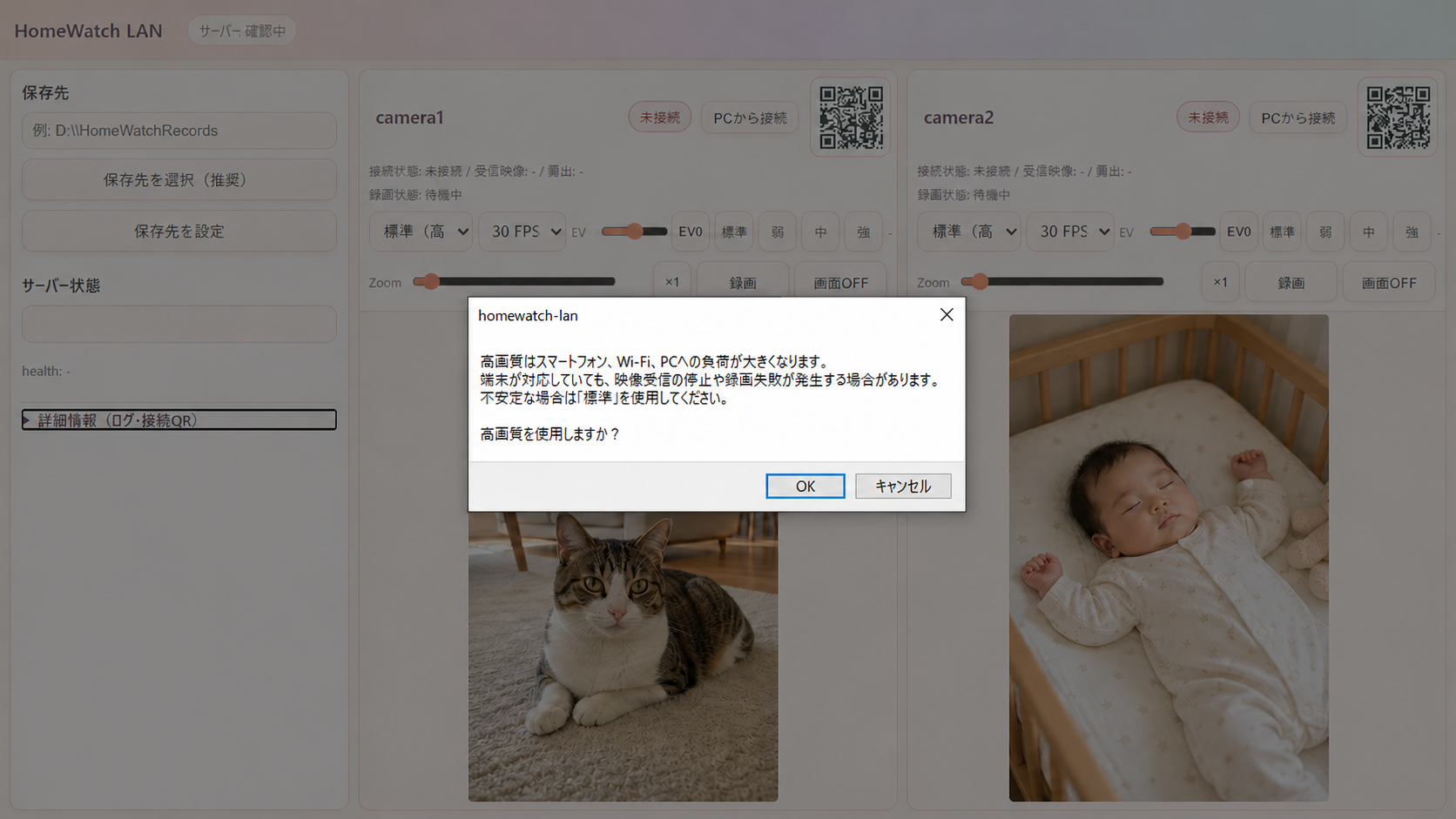
Review the performance warning before selecting High quality.
Troubleshooting
The phone will not connect
- Confirm that the PC and phone are on the same LAN and that the QR address starts with HTTPS.
- Allow HomeWatch LAN through Windows Firewall on a private network. VPNs, guest Wi-Fi, and client isolation can block local connections.
No camera picture or audio
- Allow camera and microphone access in the phone browser.
- Bring the phone camera page to the foreground, unlock the screen, and tap Reconnect.
- Close other apps that may be using the camera or microphone.
A recording is missing
- Check the selected folder status, available disk space, and write permissions.
- Check Windows Controlled folder access if Windows Security blocked the app.
- After stopping, wait for the final MP4 conversion to complete before closing the app.
If the issue continues, contact Framecode Studio. Include your Windows version, phone/browser, connection setup, and the error message. Do not send private recordings.
Safe use and privacy
Use HomeWatch LAN only on a trusted network you control. Do not expose it to the public internet or configure router port forwarding. Obtain consent from people being recorded and follow applicable laws and site rules.
Read the full HomeWatch LAN Privacy Policy